Ditch the Spreadsheet.
Own Your Stats.

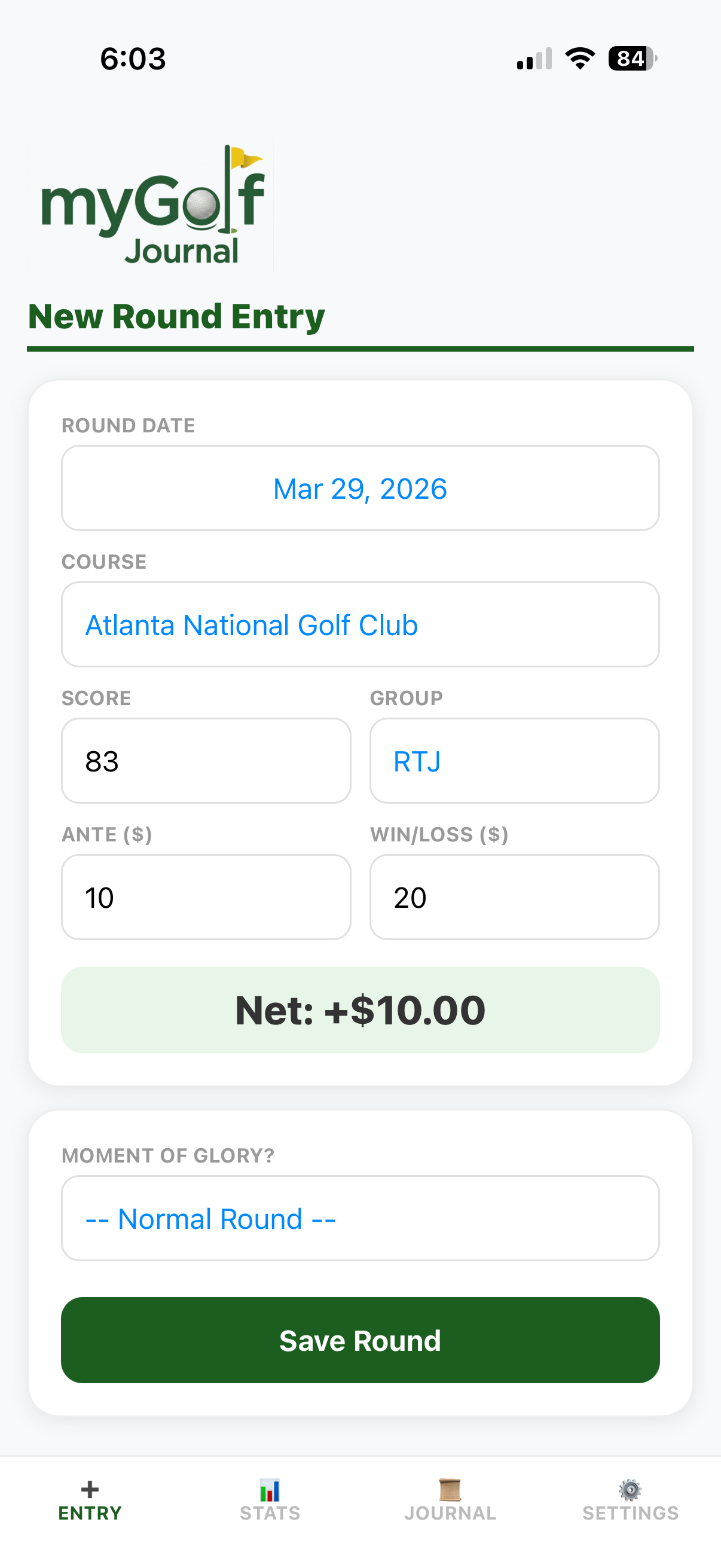
A fast, simple way to track Golf games with your friends. Enter the Date, Course, Score, Ante, and Win/Loss. KeyLock myGolf Journal instantly calculates your Net $ and helps you relive your greatest moments on the course.

Download on App Store β–Ά Google Play (Coming Soon)
Free 90-Day Trial

Flexible Monthly and Yearly subscriptions available or a Lifetime option.

Everything You Need in One Bag.

Start fresh or import your old CSV spreadsheets, track your current game, and save your data to your favorite cloud (iCloud, Google Drive, Dropbox, or OneDrive).

Dynamic Stats & Standings

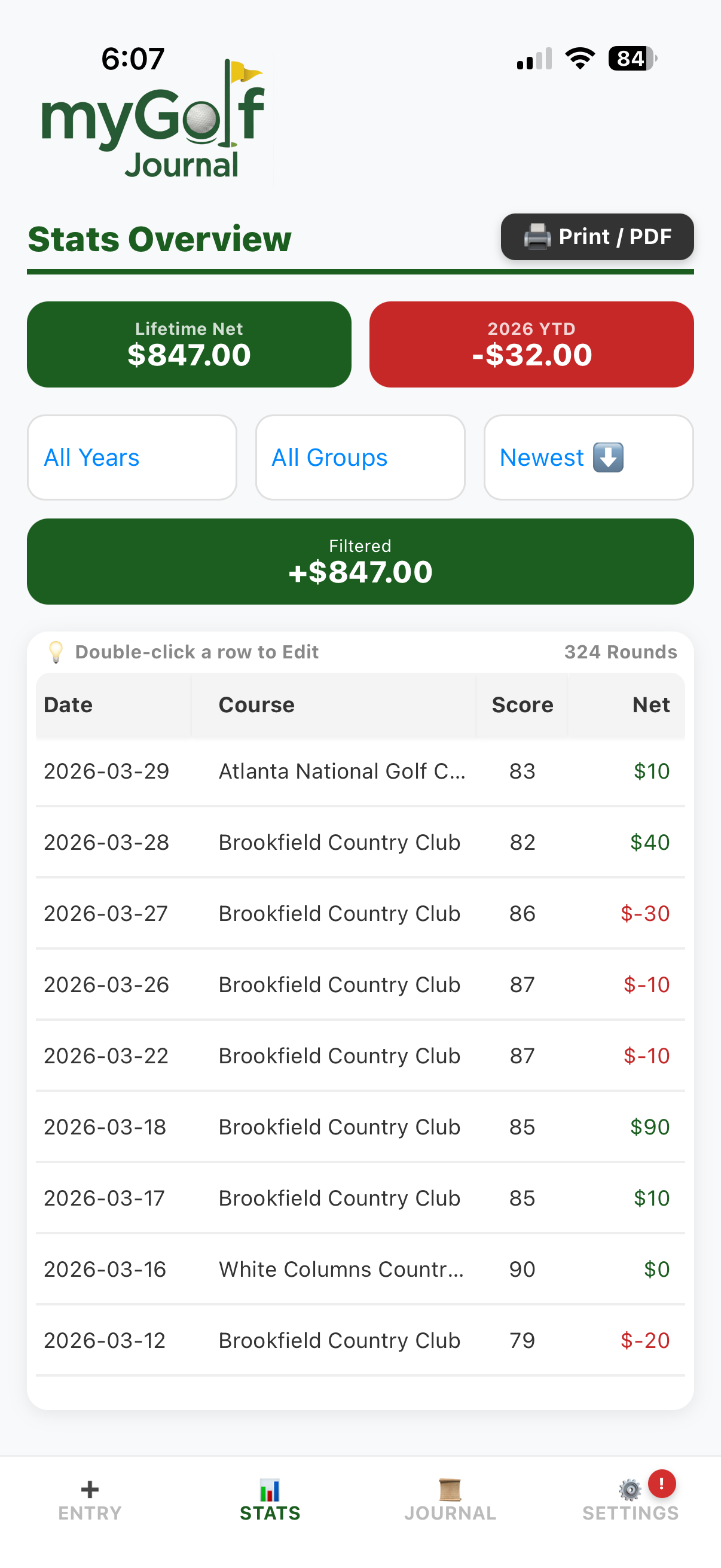
Know exactly where you stand. The Stats menu provides colored placards displaying your Lifetime Net & YTD Net winnings at a glance.

Easily sort your winnings by All Years, Selected Year, All Groups, or Selected Groups with dynamically updating placards.

Capture Special Moments

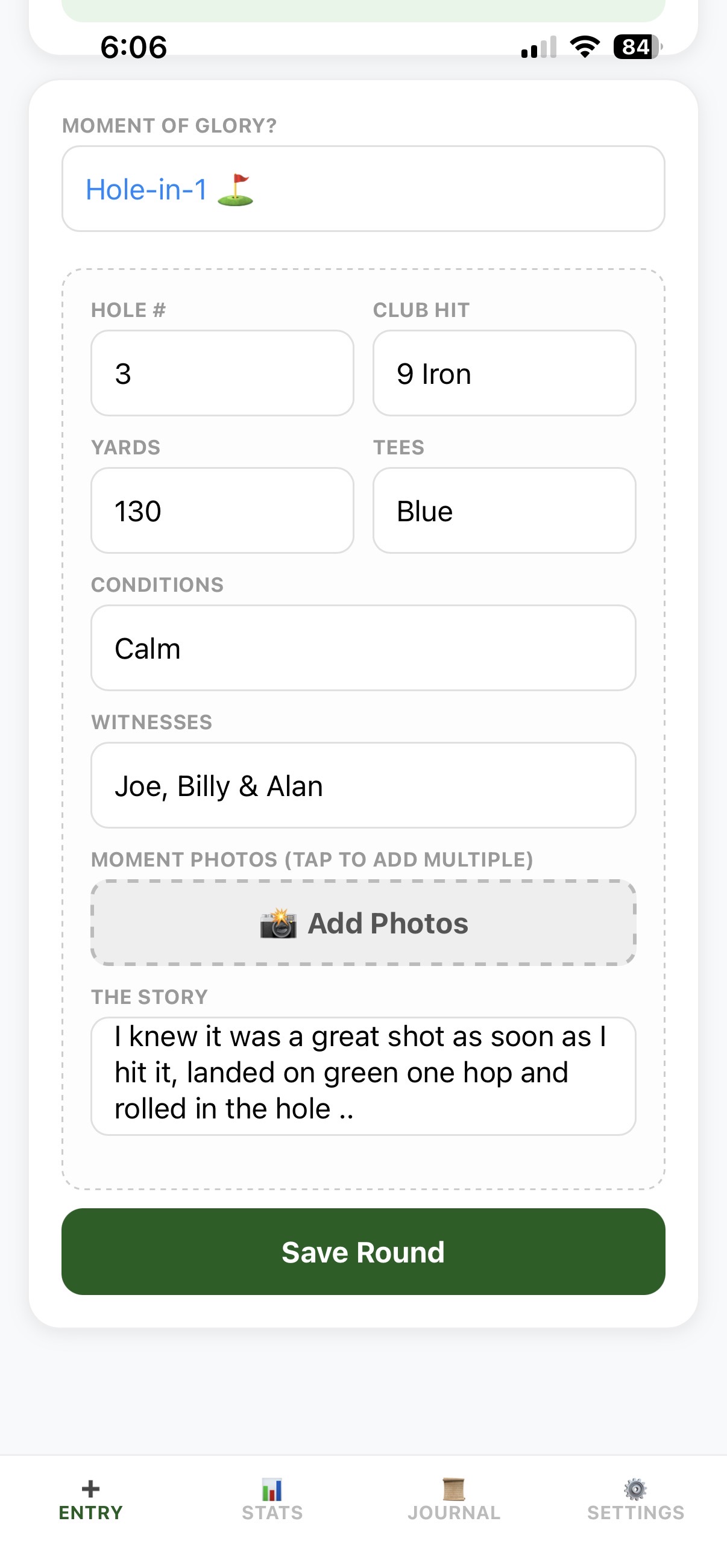
Hit a Hole-in-1, Albatross, or Eagle? Document it. Add photos of your scorecard, the hole, or your friends to capture the memory forever.

Record your club info, tees played, yardage, course conditions, witnesses, and a full text recount of the shot.

Beautiful Journal Views

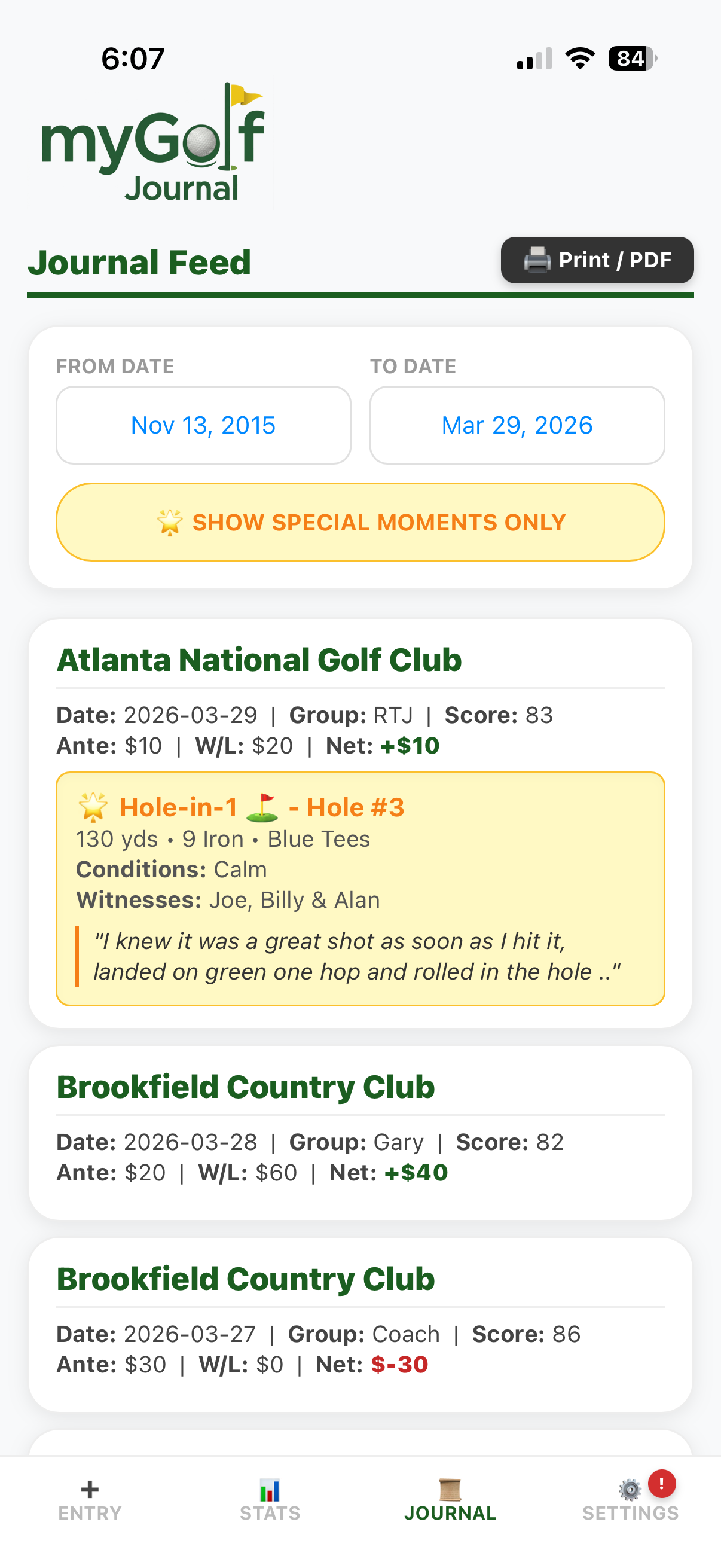
Scroll through a beautiful visual timeline of your rounds. Each game is displayed on its own custom placard.

There is also a feature button to sort and view just your special moments, beautifully displaying your Hole-in-1, Double Eagles, Eagles, or just a speial moment that occured in your round.

Support & FAQ

Frequently Asked Questions

How does the Free 90-Day Trial work?
We believe you should have plenty of time to experience everything myGolf Journal has to offer before making a commitment. Here is how your free trial works:

Instant Access, No Strings Attached
Your 90-day trial begins the moment you open the app for the very first time. You do not need to create an account, provide an email address, or enter a credit card to start.

100% Fully Unlocked
During your trial, you have complete, unrestricted access to every feature in the app. There are no limits on how many rounds you can log or which statistics you can view.

Private and Secure
Because myGolf Journal is a "local-first" app, your golf data is stored securely on your own device from Day 1. We don't track your information or sell it to third parties.

Checking Your Status
You can check how many days you have left in your trial at any time by navigating to the Settings tab and looking inside the Your License Info box.

What happens after 90 days?
When your trial expires, your data remains perfectly safe and encrypted on your device, but you will need to select a plan (Monthly, Yearly, or a one-time Lifetime License) to continue logging new rounds and accessing your journal.

πŸ’‘ Pro-Tip: You don't have to wait 90 days to explore your options! You can tap the View Subscription Plans button inside the Settings tab at any time to review the available tiers.

How do I prepare and import my spreadsheet data?

If you currently have your golf records saved in a standard Excel or Numbers spreadsheet (which usually ends in .xlsx or .numbers), you will need to save a copy of it as a CSV (Comma Separated Values) file.

A CSV file strips away all the visual styling and leaves just the raw data, which is exactly what our import tool needs to read your history correctly. You can keep your original beautifully formatted spreadsheet for your own records, and use the new CSV file strictly for this import.

To ensure your golf rounds import perfectly into myGolf Journal, your CSV needs to be completely clean.

The Golden Rules of Importing:

Expected Column Headers:
(Note: Your columns do not need to be in this exact order, nor do you need to include every single field. As long as the header names are close, our tool will recognize them.)
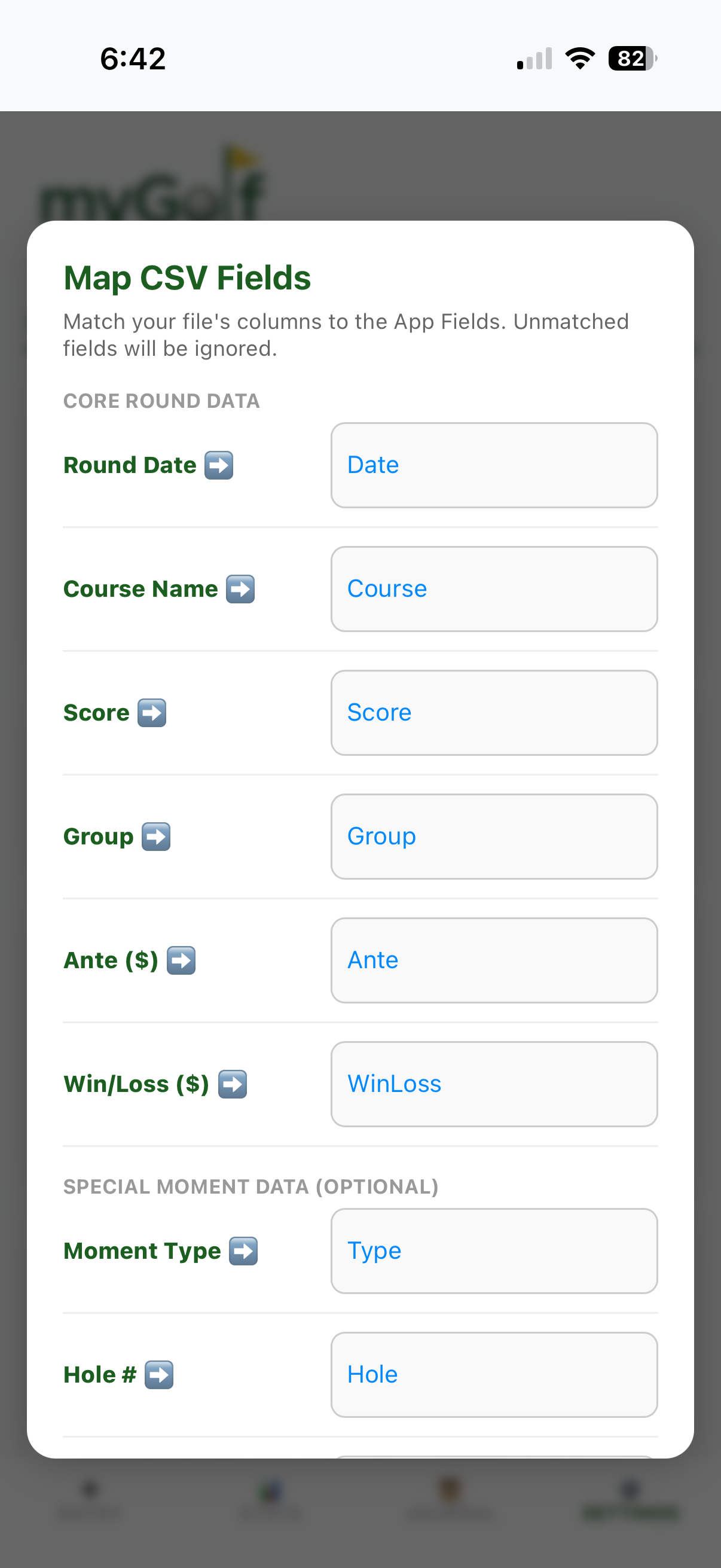
While the app can import many more data points, these are the core fields you should have for your initial import:

πŸ’‘ Pro-Tip: If your spreadsheet has gaps or missing data, it is much easier and faster to fill those blanks in using Excel before you import the file into the app!

Transferring the File to Your iPhone:
Since you likely created this CSV on a computer, you need to move it somewhere your iPhone can reach. The easiest way is to save or drag the file into your iCloud Drive. You can also use Google Drive, Dropbox, or simply email the file to yourself and save it to your iPhone's native Files app.

Ready to Import?
Go to the Settings menu in the app, select "Import", and choose your new CSV file. The app will automatically try to map your data fields, and you can adjust them via the dropdowns. The import will intelligently merge rounds based on the Date and Course Name to prevent duplicates.

Getting Started: How do I use the KeyLock myGolf Journal?
Welcome to your new digital golf memory bank! The app is designed to be fast and intuitive. Here is how to get the most out of it from day one:

Step 1: Log Your First Round
Open the app to the βž• ENTRY tab. Select your round date, type in the course name, and enter your score. You can also track who you played with (your Group) and any friendly wagers (Ante and Win/Loss) to automatically calculate your net profit for the day.

Step 2: Capture a "Moment of Glory"
Did you sink an amazing Eagle, hit a Hole-in-One, or just have a memorable day on the links? Change the Moment of Glory? dropdown from "Normal Round" to one of the special options. This unlocks extra fields to log the hole number, club used, conditions, witnesses, a written story, and even lets you attach photos from the day!

Step 3: Review Your Stats
Tap over to the πŸ“Š STATS tab to view your Lifetime and Year-to-Date (YTD) financial net. You can use the dropdown filters at the top to see exactly how you perform at specific courses, in specific years, or with certain groups of friends.

Step 4: Browse Your Memories
The πŸ“œ JOURNAL tab acts like a personalized social media feed of your golf history. You can scroll through all your past rounds, filter by date, or toggle the "Show Special Moments Only" switch to relive your best shots and view your saved photos.

πŸ’‘ Pro-Tip: Because KeyLock myGolf respects your privacy, your data is stored securely on your device, not on our servers. Don't forget to visit the Settings menu occasionally to create a Full Data Backup of your memories!

How do I contact support, report a bug, or request a feature?
If you are experiencing issues, have a question, or want to suggest a new feature, we are here to help! For all support inquiries, please contact us directly via email at keylock.app@gmail.com or via the Contact Support Form.

1. Reporting a Bug (The Quickest Way)
The absolute best way to report a glitch is from inside the app. Navigate to the βš™οΈ SETTINGS tab and tap the "πŸ› Report a Bug / Contact Support" link. This displays a Form for you to complete and submit a ticket to our support team. This form automatically populates your exact App Version and Build Number.

You may also access this same form directly on the mygolf.keylocksoftware.com website under the Support & FAQ Section and click on the Report a Bug / Contact Support link.

If you are emailing us manually from outside the app, please try to include the following details so we can fix the issue faster:

β€’ Device & OS: What phone are you using? (e.g., iPhone 15 Pro, iOS 17.4)

β€’ App Version & Build Info: You can find this in the app's Settings under "About Us".

β€’ Description: A step-by-step description of what you were doing when the issue occurred.

β€’ Expected vs. Actual Result: Tell us what you expected to happen, and what actually happened.

β€’ Screenshots: If applicable, please attach screenshots of the error or visual issue.

2. General Questions & Assistance
If you need help understanding a feature, importing your CSV spreadsheet data, or managing your database, please let us know! Be as specific as possible so we can provide the best guidance.

3. Requesting a Feature
We are always looking to improve KeyLock myGolf Journal. If there is a feature or statistic you would love to see tracked, send us an email with the subject line "Feature Request". We review all user suggestions for future updates.

⚠️ Important Security and Privacy Notice: As stated in our Privacy Policy, standard email is not a secure form of communication. Please do not include sensitive personal information, financial data, or passwords in your emails. KeyLock Software does not have access to your locally stored golf data, and our support team will never ask you to provide your database file or cloud login credentials.

Is my data backed up automatically?

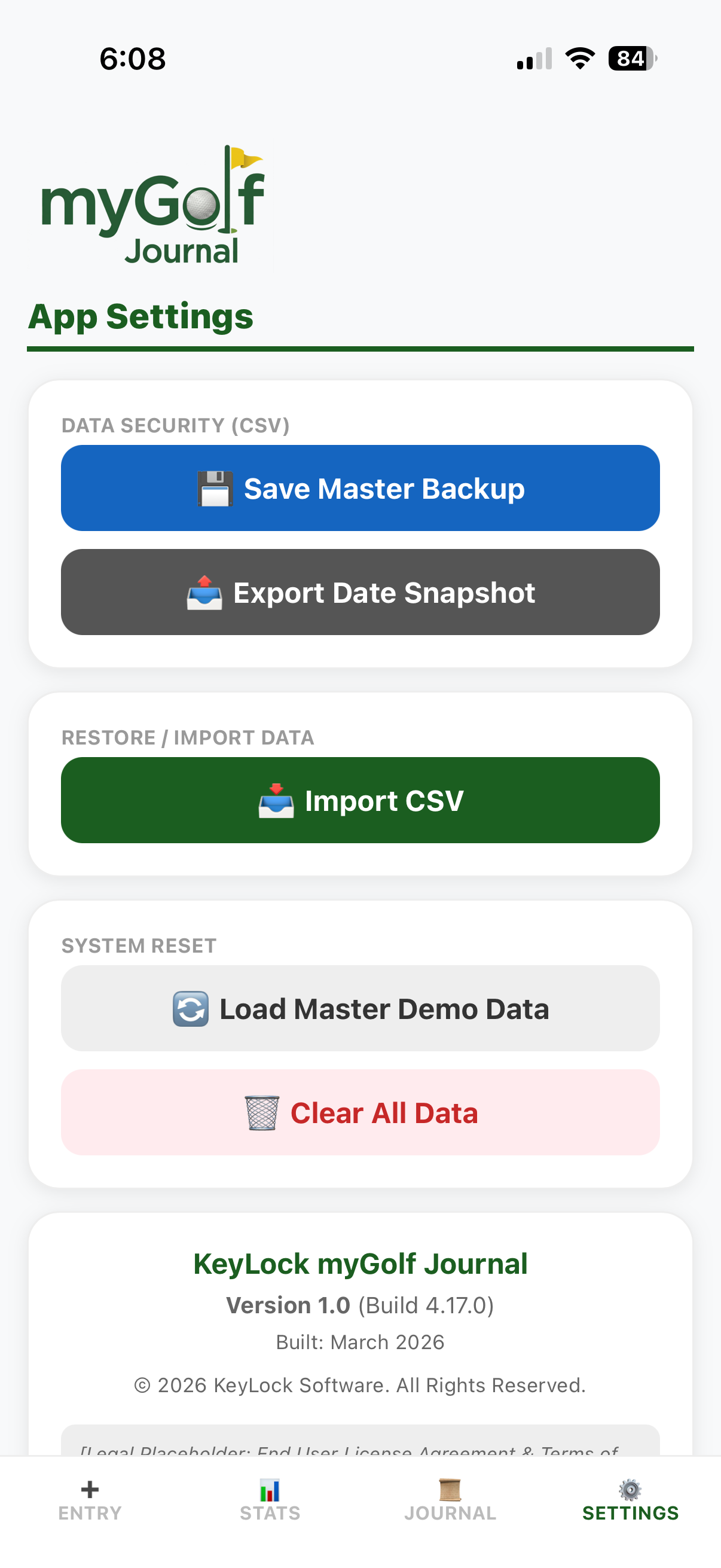
KeyLock myGolf Journal is a strictly local-first, private app. We do not require user accounts and we never sync your data to our servers. To ensure your privacy, your myGolf Journal user data lives strictly on your device. However, your data is automatically backed up by Apple as long as you have myGolf Journal selected in your iPhone’s nightly iCloud Backup settings. Because we cannot recover your data if you lose your device, we strongly encourage regularly saving a secure, manual copy using the Backup and Export tools in the Settings menu to your personal iCloud, Google Drive, or Dropbox.

What happens to my data when I upgrade to a new phone?

If you use Apple’s "Device-to-Device Transfer" or "Restore from iCloud Backup" when setting up your new iPhone, your KeyLock myGolf app and all its data will automatically transfer to your new device. However, if you are setting up your phone as a "Brand New Device," you will need to manually restore your data. We highly recommend using the Full Data Backup tool to save your database to iCloud Drive or Dropbox before you switch phones, just to be safe!

What is the difference between "Export to CSV" and "Full Data Backup (ZIP)" options?
Because you own and manage your own data, we provide two distinct ways to export your golf history depending on what you need to do:

πŸ“Š 1. Export to CSV (Spreadsheet)

What it does: Converts your entire golf journal and stats into a standard spreadsheet file (.csv).
Best for: Opening your data in Microsoft Excel, Apple Numbers, or Google Sheets. This is perfect if you want to run your own custom math, create personal charts, or print a raw list of all your rounds.
Note: Because it is a text-based spreadsheet, this export does not include your photos.

πŸ“€ 2. Full Data Backup (ZIP)

What it does: Packages your entire database plus all of your saved Special Moment photos into a single, compressed ZIP file.
Best for: Your "Master Backup." This is the ultimate peace-of-mind export. We recommend running a Full Data Backup frequently and saving it to your iCloud, Google Drive or Dropbox. If you ever lose your phone or want to manually transfer your profile to a brand-new device, importing this ZIP file will perfectly restore your entire data, photos and all!
How do I restore my data from a backup or import a spreadsheet?
Restoring your data or importing past rounds is simple and can be done right from the app:

Step 1: Navigate to the Settings menu.
Step 2: Tap the green "πŸ“₯ Import / Restore Data" button.
Step 3: Select your backup file from your device, iCloud, Google Drive, or Dropbox.

How the app handles different file types:

β€’ Full Data Backup (ZIP) : Once selected, the app will ask if you want to Replace all current data (perfect for setting up a new phone) or Merge the backup with your existing data (great for recovering a few deleted rounds without losing new ones).

β€’ Spreadsheet (CSV File): If you are importing a custom spreadsheet CSV file from another app or your own records, a smart "mapping" screen will pop up. This lets you easily match your spreadsheet columns to the app's fields so your history imports perfectly without creating duplicates.

Will taking frequent backups fill up my iPhone or iCloud storage? How do I delete old backups?
KeyLock myGolf Journal prioritizes the safety of your data. Every time you perform a "Full Data Backup" or "Export to CSV," the app creates a uniquely dated file (e.g., myGolf_Backup_2026-04-15.zip). We do this by design so you never accidentally overwrite a good backup with a corrupted one.

Because our database is highly optimized, these files are very small (typically just a few megabytes) and will not significantly impact your device's storage.

If you would like to declutter your older files:

Step 1: Open the native Apple "Files" app on your iPhone.
Step 2: Navigate to where you saved your backups (usually in iCloud Drive or On My iPhone > Downloads).
Step 3: Select the older KeyLock backup files you no longer need and delete them.

⚠️ Note: For your privacy and security, KeyLock myGolf Journal cannot automatically scan, manage, or delete files stored on your personal iCloud Drive.

What happens if I delete the app from my phone?

Because the data is stored locally, deleting the app will permanently wipe your database. Always remember to use the Export to CSV function and or performing a Full Data Backup to back up your database file before deleting the app or moving to a new device.

What does the "Clear All Data" button do?
The πŸ—‘οΈ Clear All Data button at the bottom of the Settings menu acts as a master reset for your app. Using this will permanently erase every single golf round, special moment, and photo currently saved in your KeyLock myGolf Journal.

When should I use this?
This feature is mainly used if you want to completely start fresh, or if you have been logging fake practice rounds to learn how the app works and are finally ready to start entering your real golf history.

Is it reversible?
No. Because your data lives exclusively on your device and not on our servers, we have absolutely no way to recover your data once it is deleted.

⚠️ CRITICAL WARNING: The app will ask you twice to confirm before wiping your database, but please ensure you have performed a Full Data Backup (ZIP) to your personal cloud storage before using this button, just in case you change your mind!

Does my subscription work on both iOS and Android?

No. Subscriptions are exclusively managed by the Apple App Store and Google Play Store. A subscription purchased on an iPhone will not carry over to an Android device, and vice versa. You will need to purchase a new license if you switch operating systems.